
This guide will walk you through how to search for a frame
The following guide will be within the NOVA Stock screen. To navigate there go to the following:
1. Stock
2. Frame
Searching for a Frame
Once you are in the main stock screen, you will find across the top a search box and some filters to help search for the frame you are looking for

Search - This will be the most common way to look for a frame. Enter the description, code, model or barcode here to find what you are looking for.
- Supplier - Choose the supplier of the frame to limit the results to show only that supplier
- Brand - Choose the brand of the frame to limit the results to show only that brand
- Gender - Choose the gender of the frame to limit the results to show only that gender
- Material - Choose the material of the frame to limit the results to show only that material
- Sunglasses -
- All - Will display frames whether they are marked as sunglasses or not
- Yes - Will only display frames marked as sunglasses
- No - Will only show frames NOT marked as sunglasses
- Downloaded -
- All - Will display frames whether they have been downloaded in NOVA or not
- Yes - Will only display frames downloaded in NOVA
- No - Will only show frames NOT downloaded within NOVA (these will be manually created)
- Branch - This will display the branch that you are logged into by default.
- All - This will display frames from all branches (multi-branch practices only)
- Named branch - It will only display frames from that selected branch
- NOTE: It will select the branch that you are logged into by default
- Red cross (in a red circle) - This will remove all filters and search text, giving you the entire list of frames
If you start to type in the search box, NOVA will automatically start to look for that frame. The more information you type into the search box or choose within the filters, the more precise the results will be.
There is a set of three buttons in the top of the screen
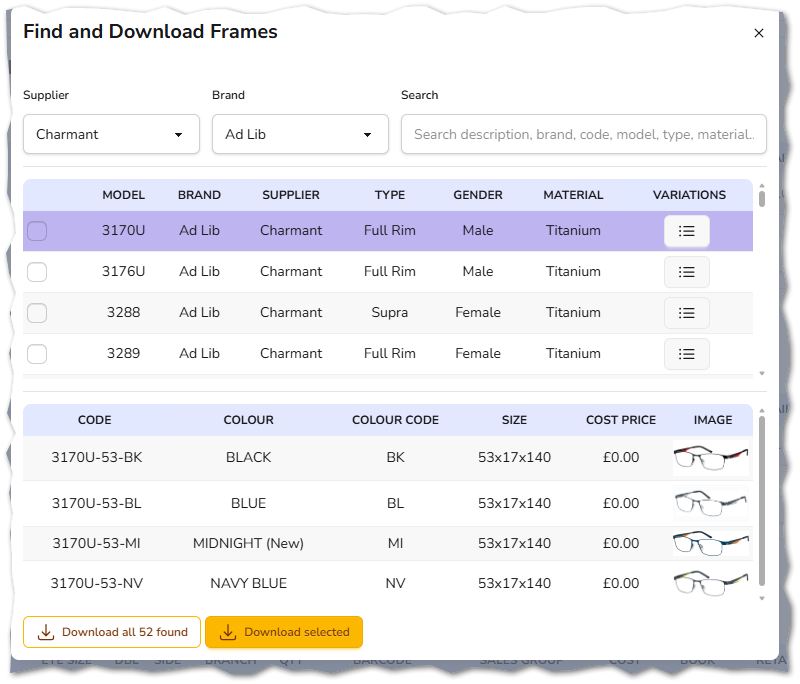
- Download - This will open a window of available frames that can be downloaded directly into NOVA. Here is an example of what you can download
- New - This will allow you to create a new frame manually. You can find a guide on what to do within this screen here.
- Quick price all - This will give you the opportunity to update the cost price, book price, retail price, change the sales group, apply a formula and link a voucher.
QUICK PRICE ALL CHANGES ALL THE PRICES THAT ARE SELECTED IN THE SCREEN - PLEASE GET IN TOUCH WITH SUPPORT IF YOU HAVE ANY QUESTIONS, AS THIS CANNOT BE UNDONE.