
This guide will walk you through how to edit a frame
The following guide will be within the NOVA Stock screen. To navigate there go to the following:
1. Stock
2. Frame
Editing a new frame
Once you are in the frame stock screen, find the frame you want to edit and then click on the edit button in the bottom right of that stock item, as seen below

You will be presented with the frame stock screen, similar to when you create a new frame (information on how to create a frame here).

From here, you can change anything you require. To do so, just click in the field, change the information to what you want.
If you want to change the price line (the variation of that frame) you will need to change the information within the red box below
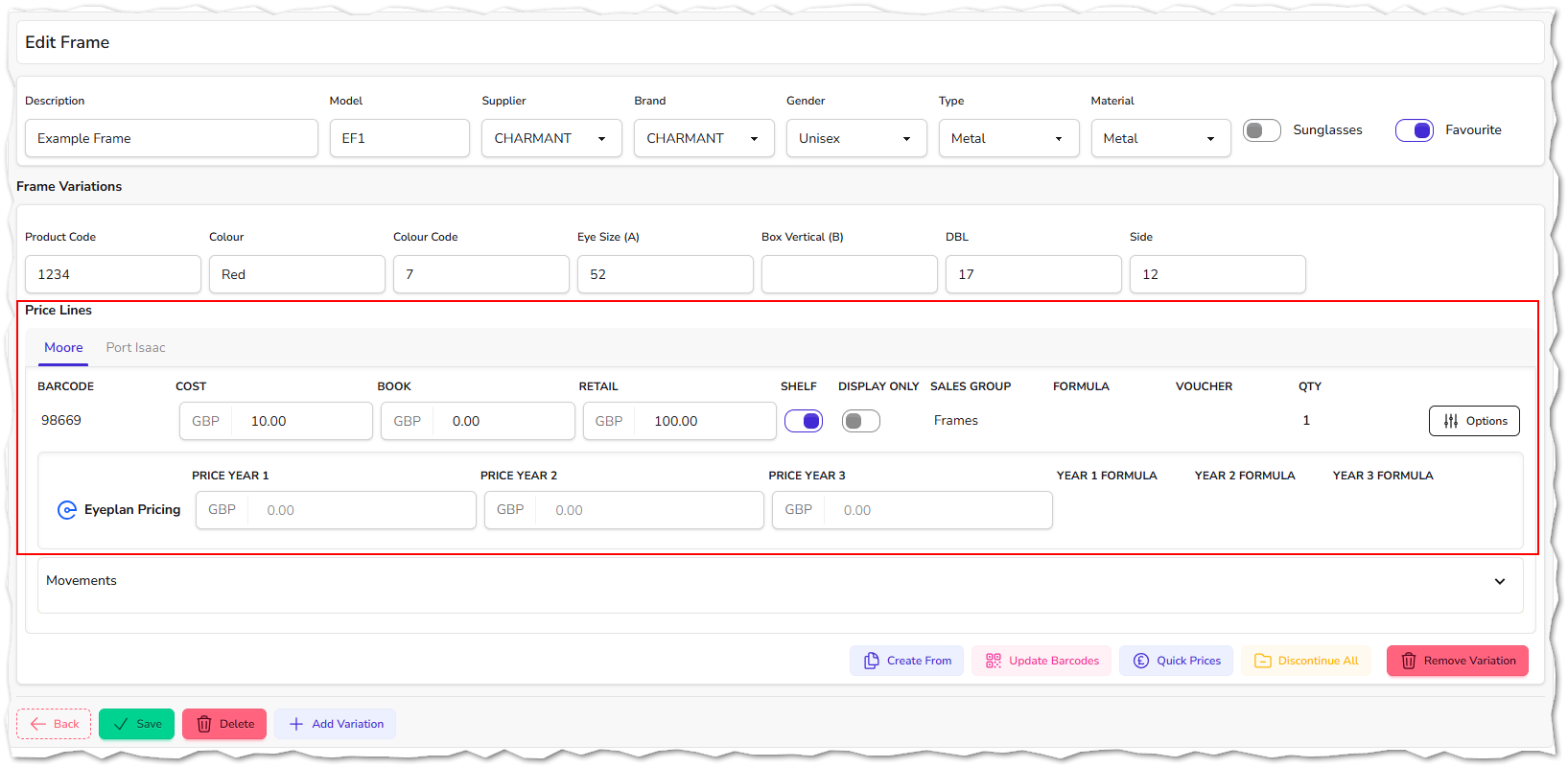
Multi-branch - You may notice that there is more than one branch tab, choose the apropriate branch and then change the information of that item for that branch - by default it will select the branch that you are logged in as.
Options
On the right side of the screen, there is an options button
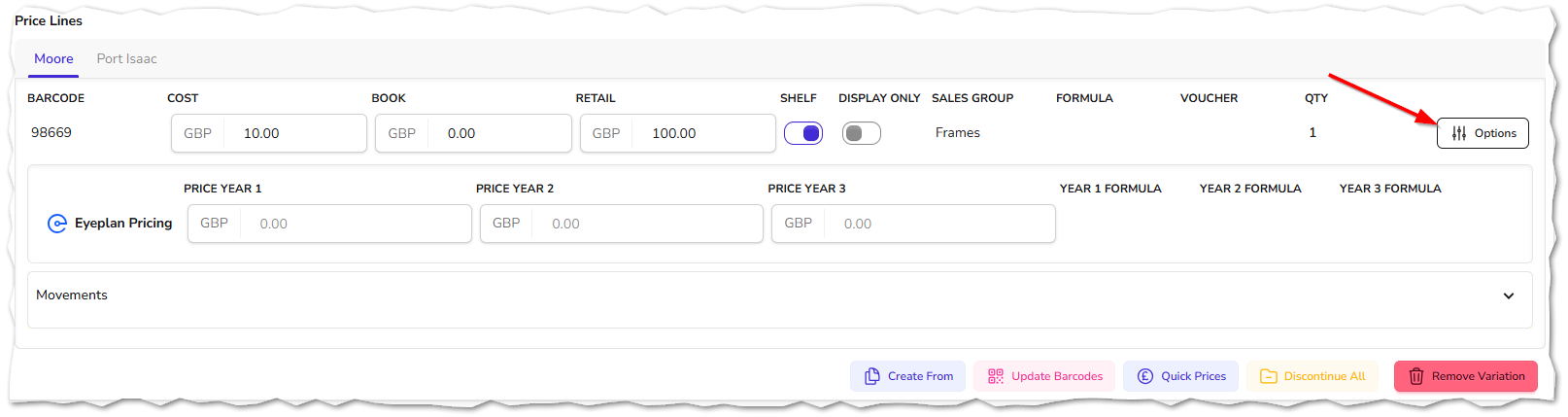
Once you click on the options button, you will see these available to choose from
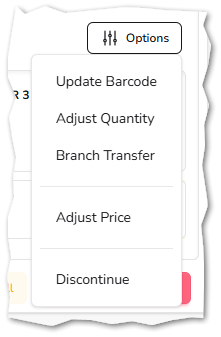
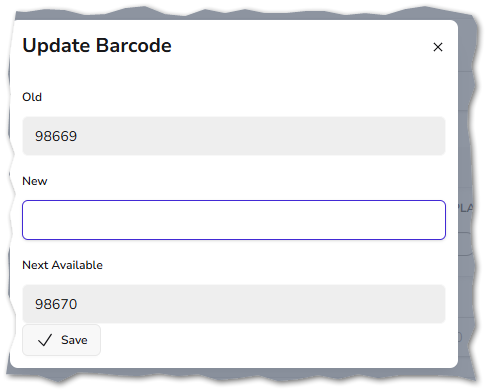
- Update barcode - Here you can change the barcode of the item as long as there is a number available to choose
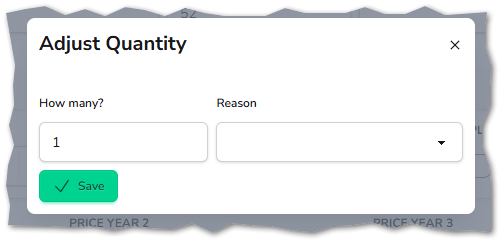
- Adjust Quantity - Here you can change the quantity positive or negative, you will need to choose the appropriate reason
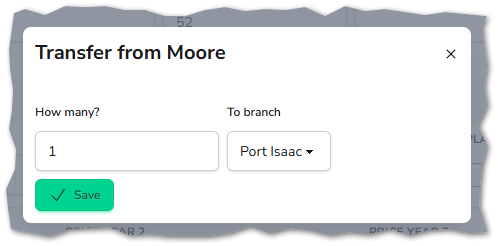
- Branch Transfer - This moves the selected item from one branch to another
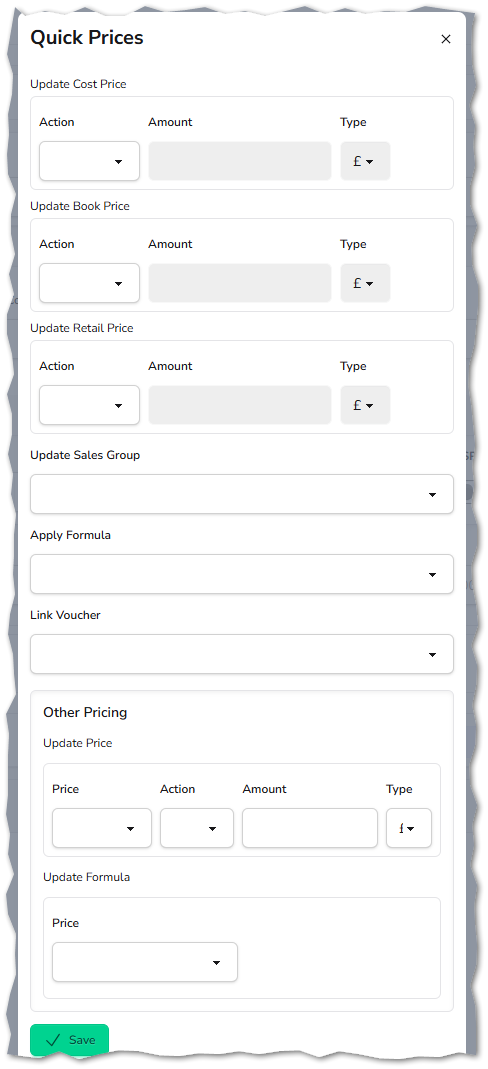
- Adjust price - Here you can change the cost price, book price, retail price, change the sales group, apply a formula, link a voucher and update Eyeplan prices
In the bottom right corner of this screen, you will see five buttons
- Create from - This will allow you to create a new variation of the selected frame. This means that you can add a new colour variation or a new size variation. Remember to save the new variation
- Update barcodes - This will update the barcodes of all the variations within this stock item
- Quick prices - This will update the prices of all variations in one go
- Discontinue all - This will discontinue all the variations, thus making them unavailable to sell from now on
- Remove variation - This will remove the variation that you have selected. Be careful here, this will delete it completely
Once you have finished editing the frame in question, click on save and it will take you back out to the main stock screen.