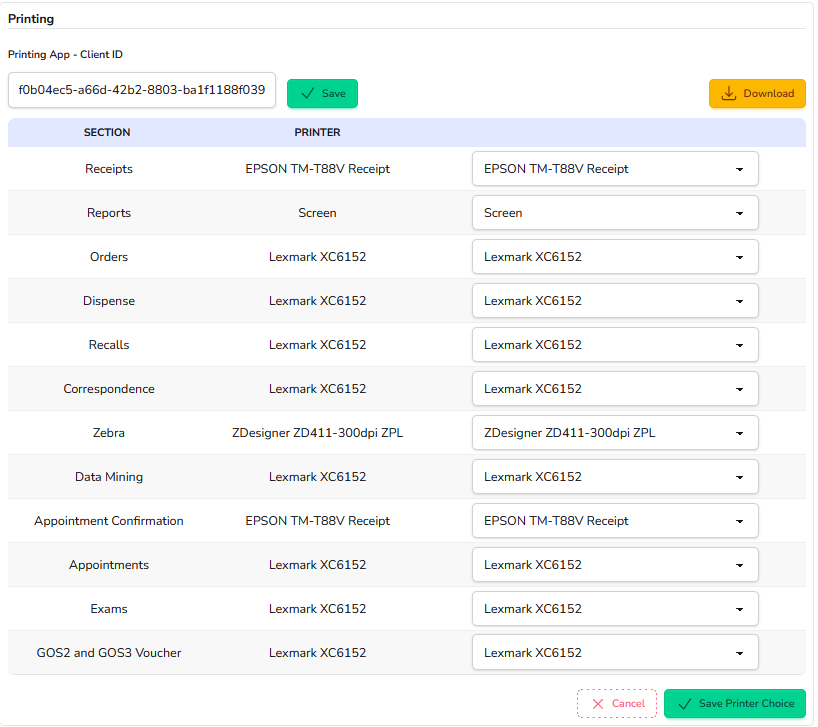
In order to send documents directly from NOVA to your printer, you will need to download the NOVA Printing App.
If you have access to the Settings screen in NOVA, go to the Device Settings tab and click on the orange Download button. That will download a standard Windows executable file, which you just need to double-click to run from your Downloads folder.
Depending on your computer permissions, you may be required to enter an administrator password. Please speak to your practice manager or your practice's I.T. support technician if you're unsure what this might be.
Once the program has finished loading, you will get a screen where it asks if you want to open NOVA Print. If the app does not appear to open, please contact support on or Raise a Ticket.
This is what the app looks like:
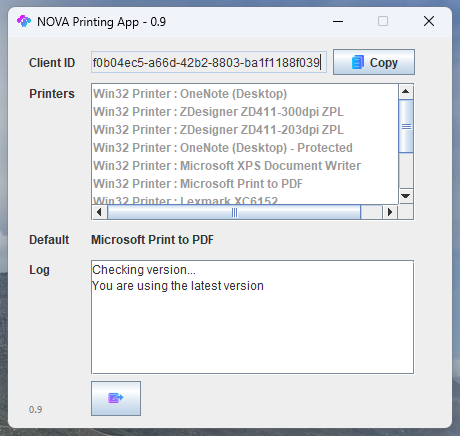
To finish setting up the app, click on the 'Copy' button in the upper right-hand corner. Navigate back to the Device Settings tab in NOVA and paste the content into the 'Printing App - Client ID' field, as shown below, and click 'Save'.
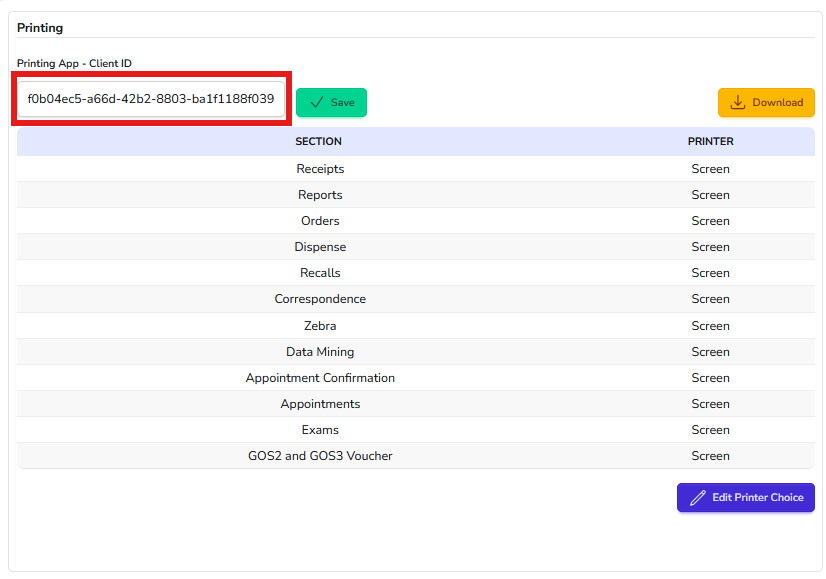
Finally, click the 'Edit Printer Choice' button, choose the desired printer for the various sections of NOVA and then click on 'Save Printer Choice' at the bottom.
Leaving the option set to 'Screen' will either open the document in a new tab or download it as a PDF, depending on your browser preferences. You also have the option to force the document to download as a PDF or to use your browser's printer dialogue.