
Xero is an online accountancy package that allows users to submit their VAT returns digitally online.
From the 1st of April 2019, any business with a taxable turnover of £85,000 per year (or more) will be required to do this via a HMRC authorised piece of software such as Xero. This change is known as “Making Tax Digital” and is designed to “make the tax system is more efficient, more accurate, and easier for taxpayers to get their tax right.”
Please use the steps below, or the attached file, to link your Xero account to NOVA. Otherwise, please contact our support line on 0800 310 2400 or support@optinetuk.com for advice.
Xero Integration
You can sign up for a free 30-day trial here: https://www.xero.com/uk/signup/
This gives you access to the “Demo Company” which can be used for testing / training. The demo company data resets every 30 days (or can be reset manually in the “My Xero” section) so should not be used for live data.
Login URL: https://login.xero.com/
Cash / Accrual Accounting
There are 2 main types of small business accounting, Cash Accounting and Accrual Accounting.
With Accrual Accounting you pay VAT on the SALES you have done during the given period.
With Cash Accounting you pay VAT on the PAYMENTS you have received during the given period.
From 6 April 2024, Cash has become the default method of accounting, however there are some restrictions on who can use it. Check the following link to see if you are eligible or check with your accountant.
https://www.gov.uk/simpler-income-tax-cash-basis
Creating A Xero App
Go to https://developer.xero.com/myapps and log into Xero.
If you have ever used Xero with FLEX previously, you will see a FLEX app already exists. You will need to create a separate app for the connection to NOVA. If you delete your FLEX app it will stop working with FLEX.
Click “New app” and enter the following details.
App name: Nova
Integration type: Web app
Company or application URL: https://optinetuk.com/
Redirect URI: Your Tennant URL/xero/auth/callback
Eg. https://company.optinetnova.com/xero/auth/callback
Agree to the terms & conditions and click “Create App”
Authorisation
Click on your new NOVA App, click on “Configuration” in the left sidebar and click on the “Generate a secret” option.
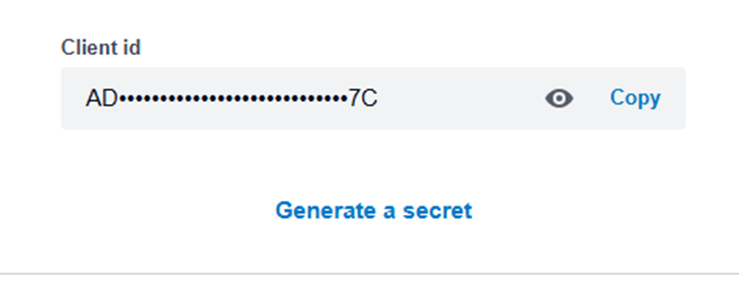
You then need to copy and paste the Client ID, Client Secret, and Redirect URI into the Xero setup section of NOVA (Setup / Transactions / Xero / API Settings).
Note: You can only copy the client secret once. If you need to copy it again you must delete the existing secret, generate a new one, copy the new one into NOVA and Authorise NOVA again.
You also need to select which upload method to use (Cash or Accrual) here.
Click Save at the bottom of the screen.
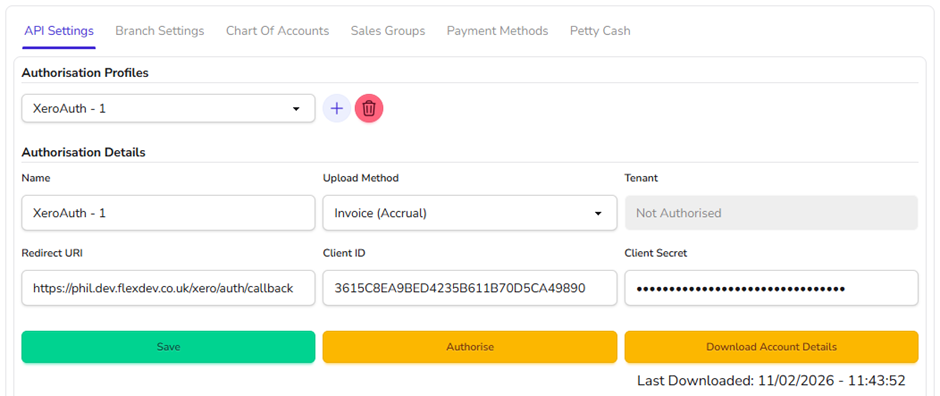
Next click the "Authorise" button. You will be redirected and prompted to log into Xero again (If you are already logged into Xero it will skip this step).
NB: If you get an error when attempting to Authorise, please contact support or click to Raise a Ticket.
You will then be prompted to grant NOVA access to an organisation. This will either be your company name if using a live account or “Demo Company (UK)” if using a trial. If Demo Company is not available go to https://my.xero.com/Dashboard and select “Try the Demo Company (UK)” to enable it, then try Authorising again.
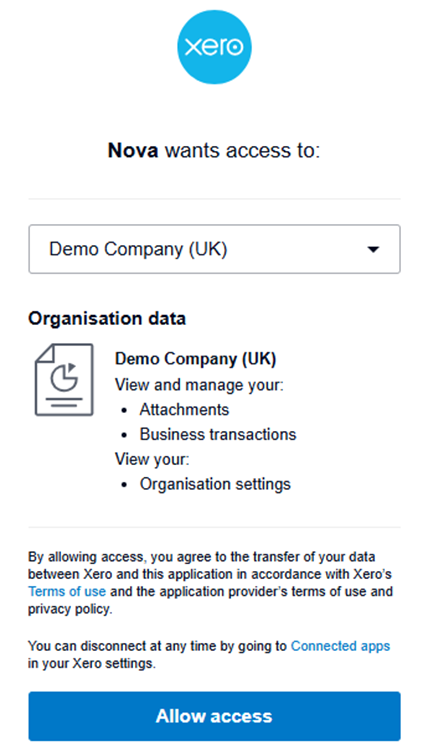
Click “Allow Access” and you should be redirected back to NOVA. The Authorise button should have a turned grey and say “Authorised” if successful. You will not need to authorise again unless there is an issue with authorisation, or your app details are changed.
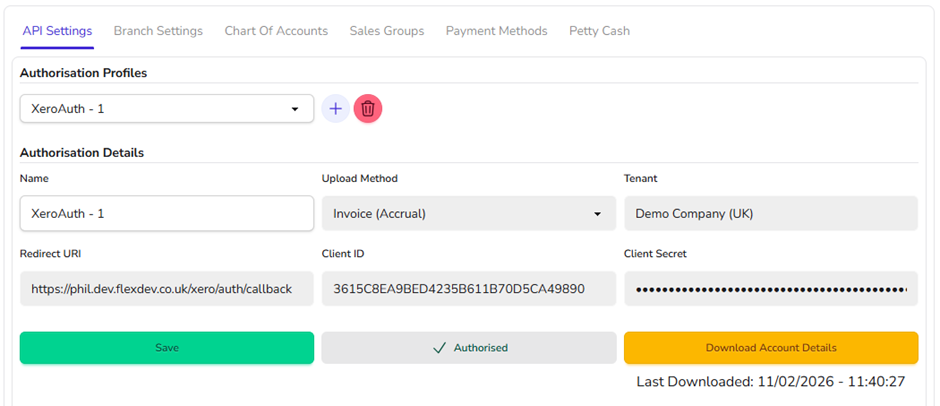
Once authorised, click the “Download Account Details” button to download your Bank / Revenue / Expense / Clearing / accounts etc into NOVA. This will display a notification and refresh the screen once complete. If accounts are added, modified or deleted in Xero you will need to run this again.
Xero accounts can be created and edited here. https://go.xero.com/GeneralLedger/ChartOfAccounts.aspx
Note: If accounts are deleted or archived in Xero, they will be removed from any sales group / payment method / petty cash assignments in NOVA when this is run.
Using Xero with Multiple Login Details
If you have multiple branches, you may want to use separate Xero Login details for each branch. In NOVA we refer to these as “Authorisation Profiles” to avoid confusion with “Xero Accounts” which are the Bank / Revenue / Expense / Clearing / accounts that are used within each profile).
You can add, edit and authorise multiple profiles on the API settings tab of the Xero Setup by selecting the profile you want from the dropdown at the top.
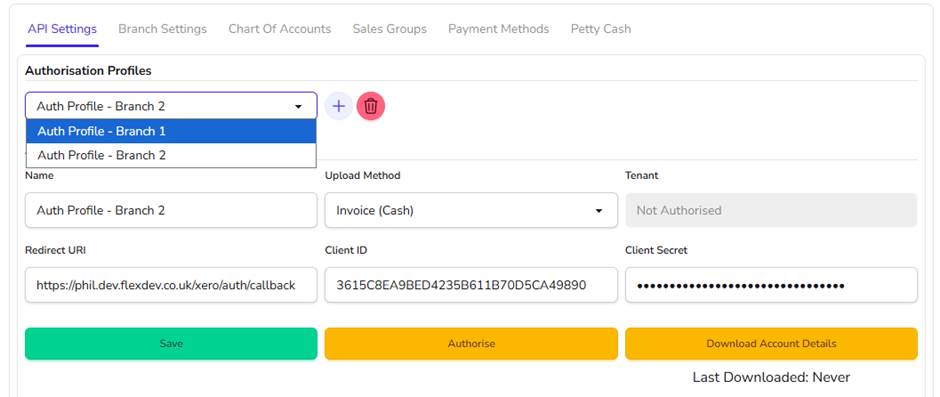
Once all your profiles have been set up and authorised, each branch can select the profile they want to use by logging in at the desired branch and selecting the Authorisation profile from the dropdown on the Branch Settings tab.
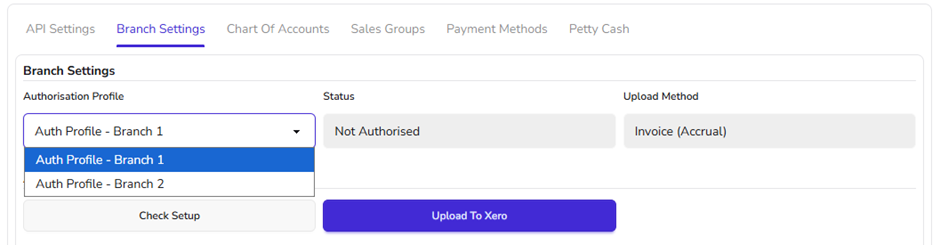
Changing authorisation profile will reset all Account Assignments for the current branch.
Tracking Categories
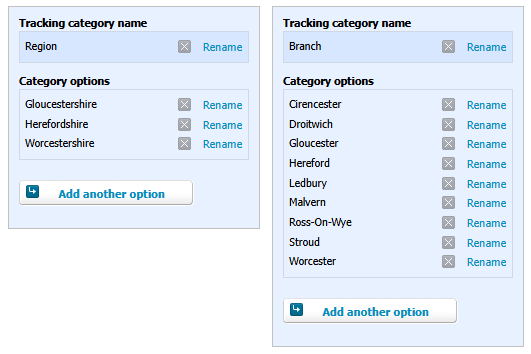
If you have multiple branches but want to use a single Authorisation Profile for all of them, you can set up Tracking Categories to act as a branch filter within Xero. Tracking Categories are entirely optional, but can be used to group, or separate transactions from different branches depending on how you want to use them.
You can have up to 2 tracking categories, with unlimited options in each category. Tracking categories can be edited here. https://go.xero.com/Setup/Tracking.aspx
For example, you could create tracking categories based on the location of branches.
Account Assignment
The following steps need to be done at each branch.
Sales Group Setup
Click on the “Sales Groups” tab.
Here you need to assign a Xero Account to every sales group at your active branch.
The VAT Inclusive and VAT Exempt portions of each sales group should be assigned to separate Xero Accounts if they have a Dispensing or Professional Fee portion. For example…
Set the VAT Inclusive portion of all sales groups to a Xero Account called “Sales – A”, which is set to 20% VAT in Xero.
Set the VAT Exempt portion of all sales groups to a Xero Account called “Sales – X”, which is set to 0% VAT in Xero.
The VAT figures from NOVA are not actually uploaded to Xero, NOVA only uploads the sales group totals and Xero calculates the VAT based on the account it is assigned to. Therefore, if you notice a VAT discrepancy, it’s likely that your account assignment is incorrect.
Sales Groups can only be assigned to Xero “REVENUE” type accounts. You can see these in the “Chart Of Accounts” tab.
Remember to click Save at the bottom of the list.
Payment Method Setup
You then need to go to the “Payment Methods” tab and assign a Xero Account to each of the payment methods you want to upload.
You can leave certain payment methods blank if you don’t want to upload them. For example, if you have a “Write Off” payment method, as this does not actually go into your bank.
Payment Methods can only be assigned to Xero “Bank” type accounts and accounts with “Payment Enabled”. You can see these in the “Chart Of Accounts” tab.
Remember to click Save at the bottom of the list.
Clearing accounts
To help reconcile payments into your main bank account, especially when payments are delayed (as is the case with NHS Vouchers) you may want to create clearing accounts for these payment methods.
Some other examples include Scheme direct debit payments, corporate payments, credit card payments or petty cash.
To create a clearing account, click the “Add Bank Account” button in the Xero chart of accounts.
https://go.xero.com/GeneralLedger/ChartOfAccounts.aspx
When asked to find a bank account, type “Liability” and it will tell you that no results match your search and give you an option to “Add without bank feed”. Click this, then click continue.
As this is a clearing account, the bank account details don’t really matter so long as you are able to identity what the account is for. Click “add account”.
You then need to re-download the account details in NOVA and assign your clearing accounts to the appropriate payment methods. Remember to click Save at the bottom of the list.
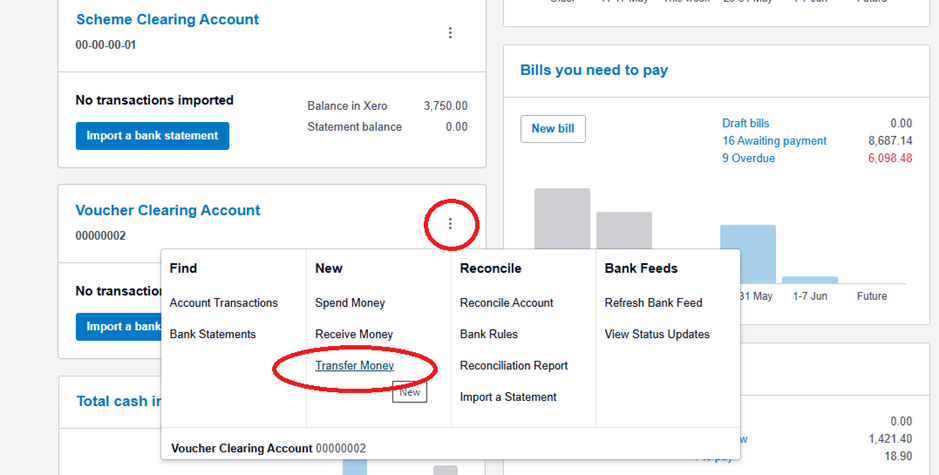
As an example, Voucher payments from NOVA could be uploaded into a “Voucher Clearing Account”. When you receive payment into your main bank account from the NHS, you can transfer the same amount from your Voucher Clearing Account into your main bank account and reconcile the payment easily.
This can be done from the Xero dashboard by clicking the 3 dots next to any of your bank accounts.
Petty Cash Setup
If you are using the “Upload Petty Cash” branch option, you must select a Xero account to take petty cash from on the Branch Settings tab. This would usually be your Business Bank Account, or a Petty Cash clearing account.
You then need to go to the “Petty Cash” tab and assign Xero Accounts to all Petty Cash Groups in the same way you assigned sales groups. Again, you must make sure the VAT rate of the Xero Account matches that of the petty cash group to make sure there are no VAT discrepancies.
Petty Cash Groups can only be assigned to Xero “EXPENSE” Accounts. You can see these in the “Chart Of Accounts” tab.
Remember to click Save at the bottom of the list.
Other Branch Options
Liabilities
Patient Account transactions must be done using a “Current Liability” account with payments enabled. This allows the patient account top-ups to be held in a 0% VAT rated liabilities account until the balance is spent on goods, at which point VAT is paid.
Upload Attachments
This option simply attaches the corresponding reports from NOVA to the invoices in Xero so you can easily compare the figures and make sure they are correct.
Uploading To Xero
Once all the setup is complete. On the Branch Settings tab there is a button to “Upload To Xero”.
Here you can select which cashups you want to upload / re-upload and will display notes about the status of the upload. For example. “Invoice uploaded. Refunds uploaded. No petty cash to upload. “
Reports
The best report for direct comparison to NOVA in Xero is called “Account Transactions”.
In this report you can select all your Xero Sales Accounts (which you have assigned to sales groups in NOVA), select a date range, and select which columns to display.
We would recommend setting this report to “Summarise by Account” and selecting the columns Gross, Net and Vat.
You can then select Cash or Accrual in the “more” options section.
If using Cash Accounting this should be compared to the “Payments By Xero Account” report in NOVA.
If using Accrual Accounting this should be compared to the “Sales By Xero Account” report in NOVA.
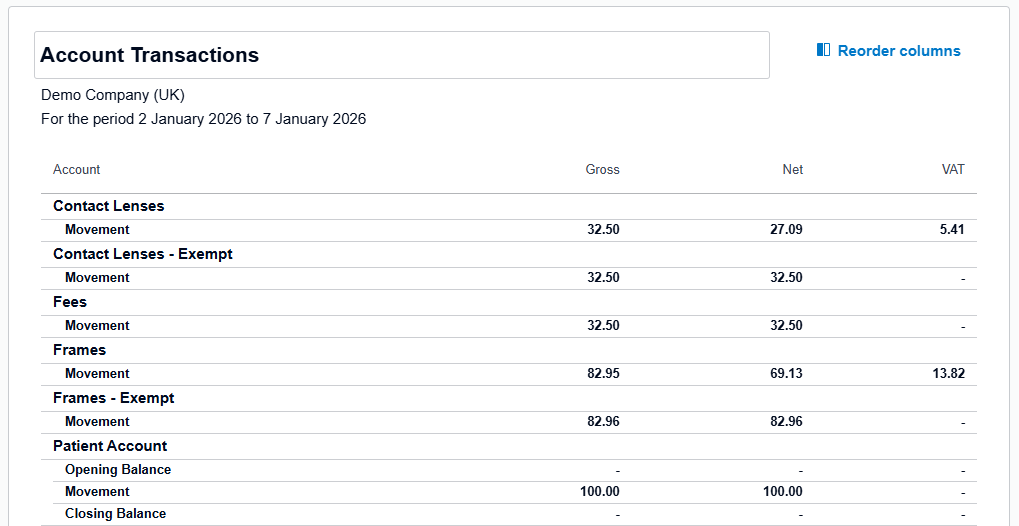
If you are happy with the report layout in Xero, you can save it for later use by clicking the “Save As” button in the bottom right of the screen and saving it as a custom report.