
To further enhance the AI referral, clinical data from the examination record is securely transmitted when you send your referral. You can configure what assessment data is sent in setup.
Setup: Registration
Before you can send a referral you will need to register your NOVA system with the ReferAI system and be assigned an API key. This process is straightforward - follow the steps below to complete the registration.
- Goto Menu -> Settings -> Branch -> Integrations
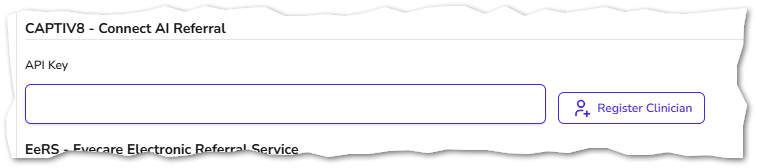
- Scroll down to the 'Captiv8 - Connect AI Referral' section
- New Users
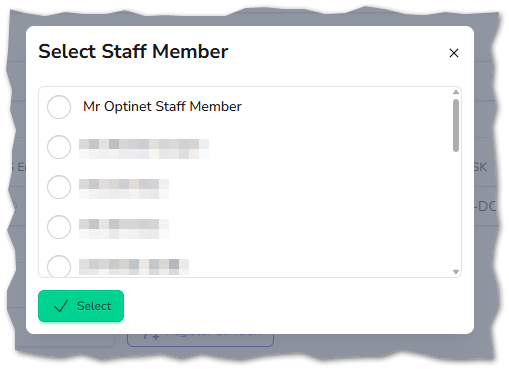
- Click the 'Register Clinican' button and select the staff member who will be the main account contact.
- Staff members must have a GOC number assigned on their staff record and the practice must have a valid branch address.
- Staff members must have a GOC number assigned on their staff record and the practice must have a valid branch address.
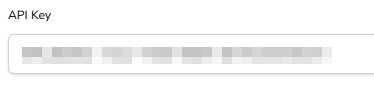
- If the registration was succesful then the API key will become populated, click the 'Save' button at the bottom of the page.
- Click the 'Register Clinican' button and select the staff member who will be the main account contact.
- Existing ReferAI Users
- Paste your API key into the box and click the 'Save' button at the bottom of the page
- New Users
Setup: Choosing Clinical Assessment Data To Be Included
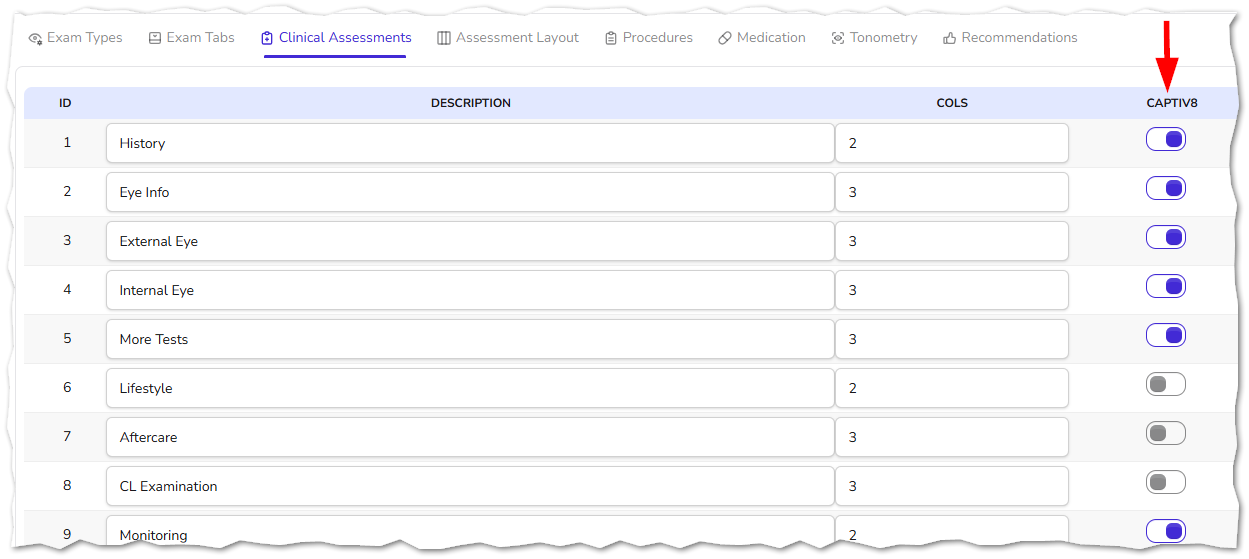
When the referral is sent,clinical assessment data is included - you can choose what is included by following these steps.
- Goto Menu -> Settings -> Exams -> Clinical Assessments
- Pick the Assessments you want to include in the Referral data by selecting the Captiv8 option
- Click 'Save' to finish
Creating & Sending a Referral
- Begin by finding the patient you wish to create the referral for (How to find a patient)
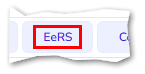
- Click the 'EeRS' button on the navigation bar (top of the page) or scroll down to the 'eReferrals' section

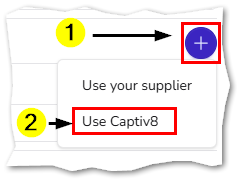
- Click the'New' button and select 'Captiv8' from the supplier list, to start a new referral.
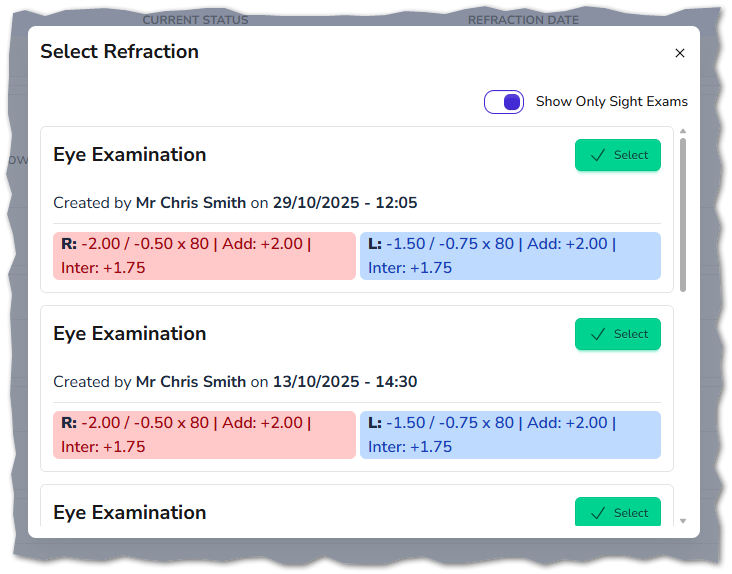
- Before the new referral appears, select the refraction you wish to use from the popup window (we are assuming that the examination has already been completed - View Examination Record Quick Guide ).
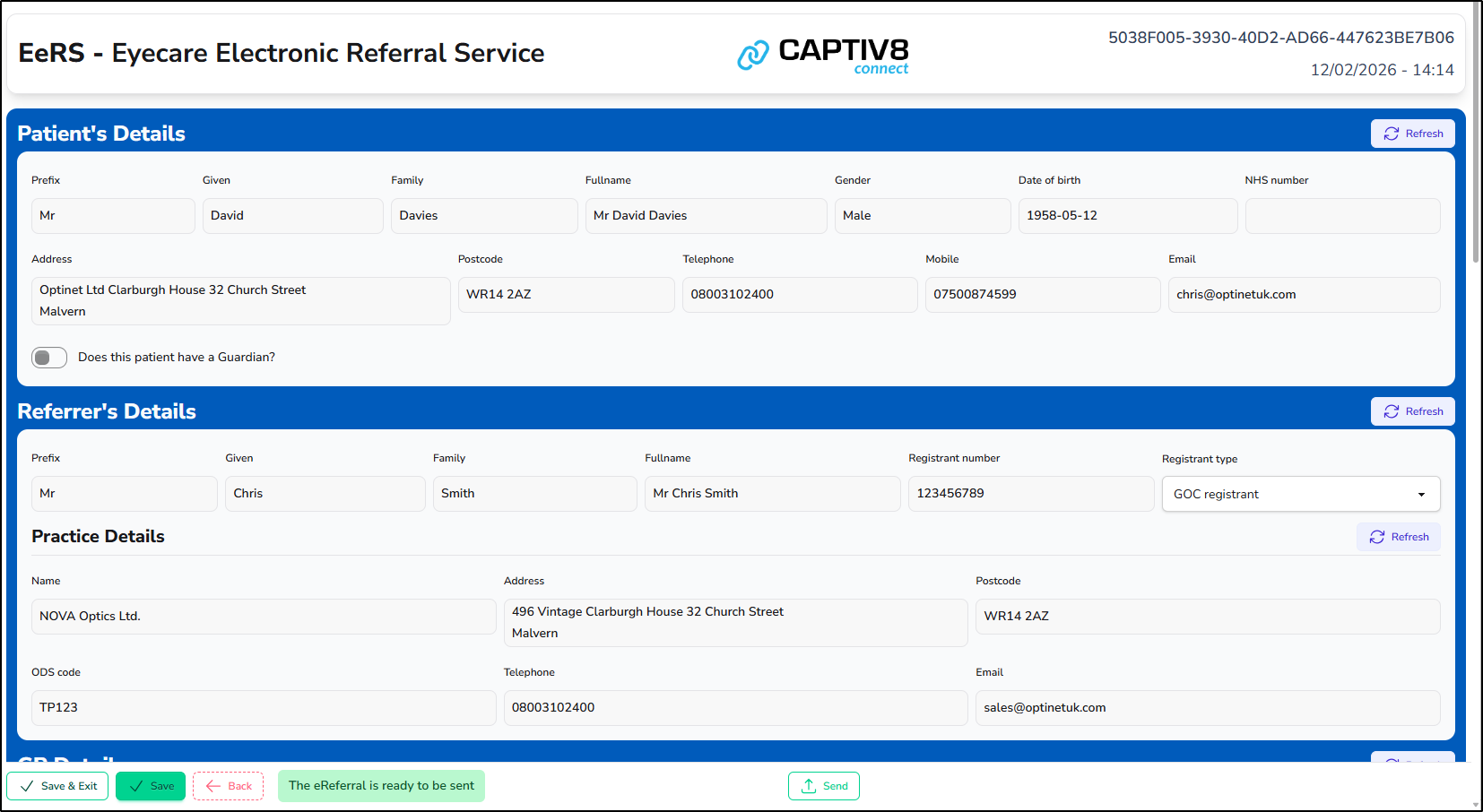
- You can complete the remainder of the referral form on-screen.
- If there are errors, you will be notified via a box at the bottom of the page which, when clicked, will slide out a panel on the right hand side of the screen with more detail.
- If there are errors, you will be notified via a box at the bottom of the page which, when clicked, will slide out a panel on the right hand side of the screen with more detail.
- When the form is ready to be submitted a message will appear at the bottom of the screen, clikc the Send' button to send the referral to Captiv8.
