
You need to create a PVN that specifies date and time when Test will be done.


Send off PVN to PCSE,


once Accepted,  add to code from this to the GOS6 (scroll down for GOS6 Help.)


Note PVN will need to be requested well before day of Test, at least 24hours.
Creating a PVN
Firstly you may need to set up the Venue, unless you have tested at this address before. Venue will appear as a drop down in the PVN screen, if you have tested here before then that Venue will be in the list, skip the next step.
Venue
Setting up a New Venue
Go to Menu > Settings > Patients > PVN Venues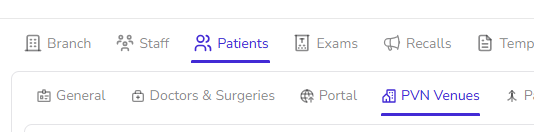
Add a New Venue using the (+) fille in details then (SAVE)
PVN form
Go to eGOS 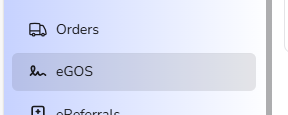
The Top right of this screen press the + PVN button :
Fill in this screen - Adding the Venue (see above for new Venue).
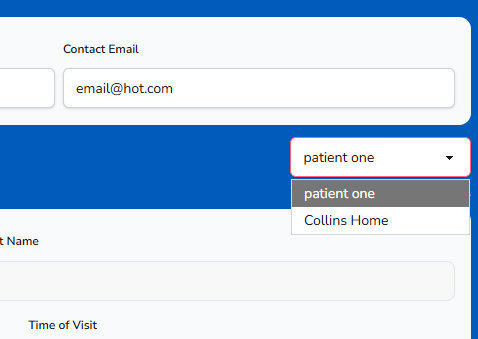
Select Venue on the right side first - this will fill in the Address.

Sending a PVN to the NHS
Once ready, a Button to indicate Ready to send will appear.

Save and Exit
Submit from the PVN List screen that you will now be on.
* You may need to choose the venue on the left to see the claim, Tick Next to the New Venue as below.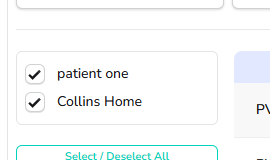
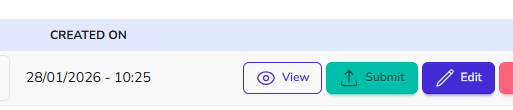
If Rejected - click the down arrow - then Details to see what the Error message was.
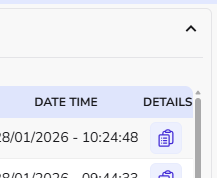
Checking a complete list of PVNs - Choose 'Select All' 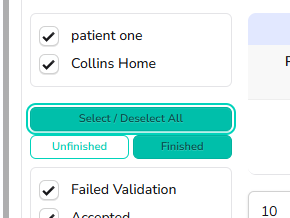
You can then easily see all claims that are Ready, Rejected and the Accepted .
Once Accepted as below, this then can be added to GOS6.

Changes to Date/Time/Venue
The PVN specifies a Date AND Time, if there is any change to date and time of Test,
it is best to create a NEW PVN this is then added to the GOS6 instead.
Cancelling a PVN
In order to cancel a PVN, this needs to be previously Accepted. If not, it can just be deleted.
Editing a (previously submitted) PVN
A different procedure (and XML format) is used if editing a previously submitted PVN (notice it has a PVN Reference).
We recommend create a New PVN.
---------------------------------------------------------------------------------------------
GOS 6
Use the Dropdown next to PVN to select the PVN you have created into this form..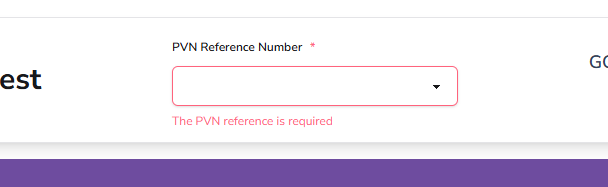
Fill in the form and collect Signature on-site once done.
Signatures
We recommend trying the signature process in the practice before the visit, using the Signature method you will use on-site (i.e. tablet or Phone over Internet), as a test and to familiarise yourself with the process.
You will see a Record signature button :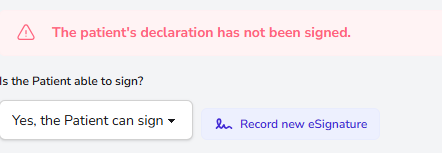
The usual Signature Screen comes up, use as per eGOS in practice :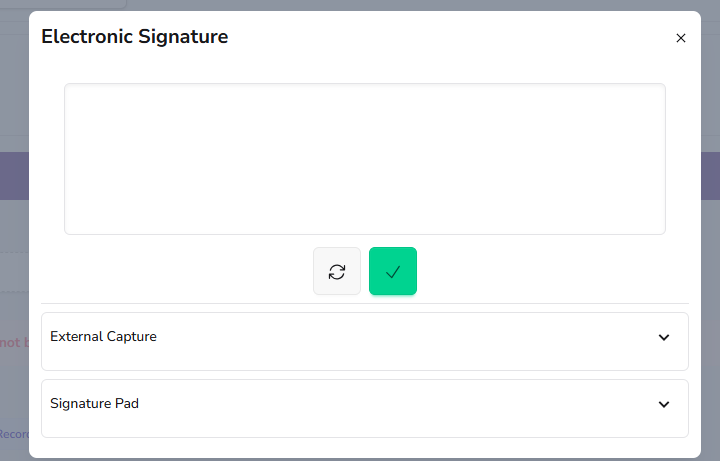
For Help with how to capture a Signature, a Help Page link is here. - Capturing a signature
-----------------------------------------------
For any further help, call Optinet Support - 0800 3102400 or email us at support@optinetuk.com