Messages
This guide will take you through the use of messages section from the homescreen of NOVA.
TABLE OF CONTENTS

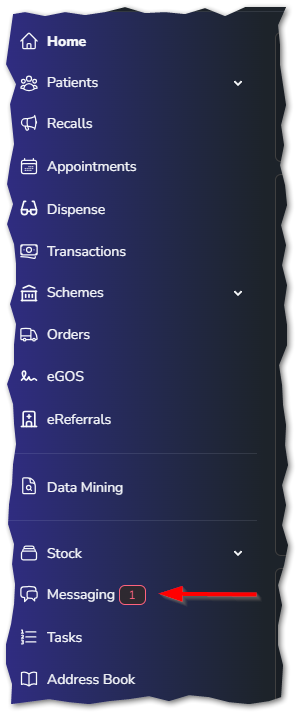
You can either access the messages screen from the button at the top of the home screen (as shown above) or by clicking the messaging button along the menu bar on the left of the screen.
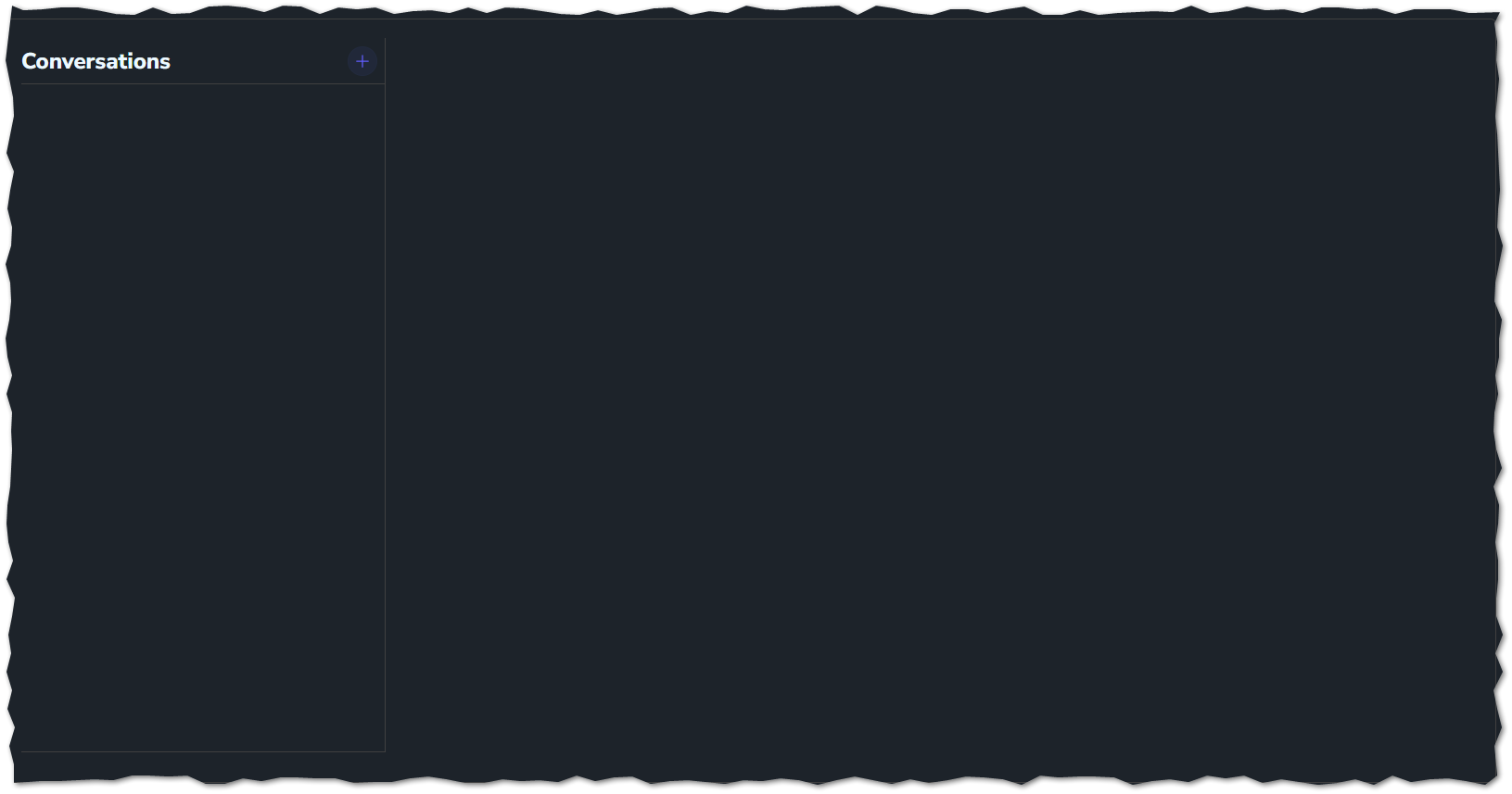
If you haven't used messages before, the screen will be empty.
Create a new message
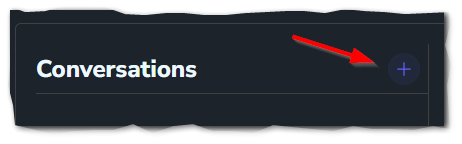
Click on the plus icon to create a new message
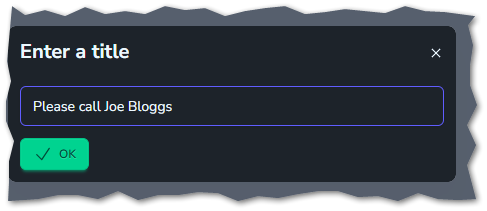
Simply then enter a title for the new conversation, then click ok.
This will create the conversation window. Now, you will need to add participants to the conversation. This can be just between yourself or several staff members.
Click on the participants button in the top right of the window.

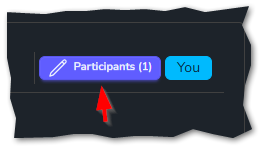
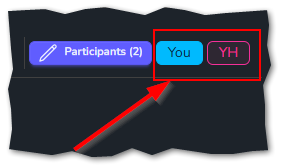
Once you have clicked on here, it will bring up the list of active staff members. Choose as many as needed. You will now see the staff member's initials of who is in this conversation.

From here, you can just type in messages, and they will appear on the home screen of the other staff member(s). It will also appear with a number next the the messaging section on the menu bar, on the left side of NOVA.

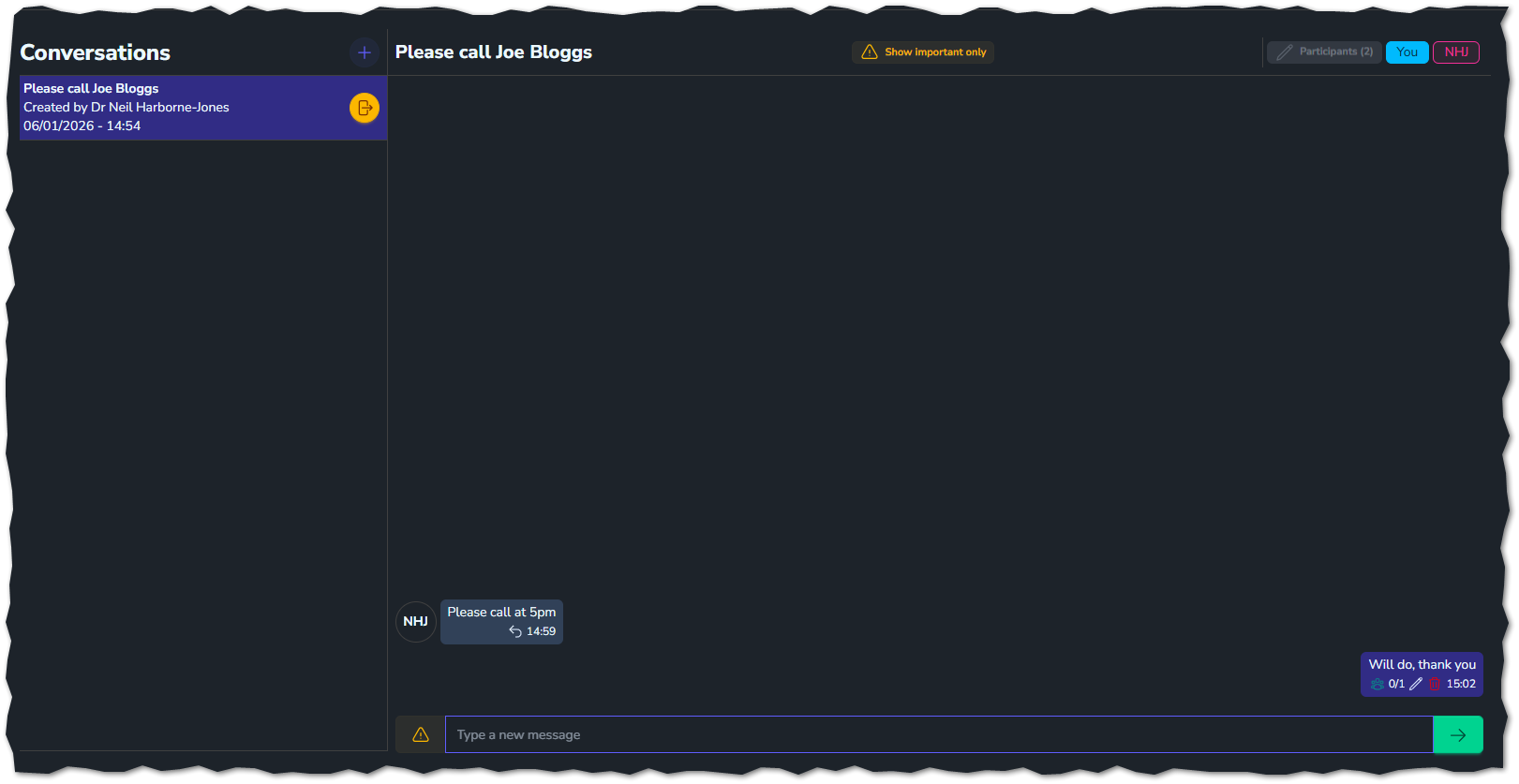
When a message is sent, it will have an icon and then a number next to it, which refers to how many people have seen your message.
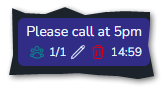
Marking a message as important
You can also set the importance of a message by clicking the triangle icon
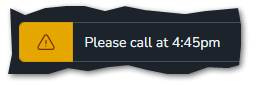
When the recipient receives it, it will look like this
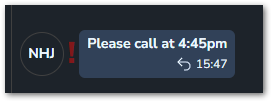
Useful information
Replying to a message
You can reply to a message, this is especially useful if there are more than two members in the chat.
If you look for the message you want to reply to, you should see an arrow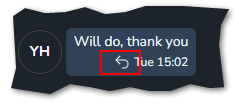
This will then highlight that message and tell you the name of the sender you are replying to, as you can see below.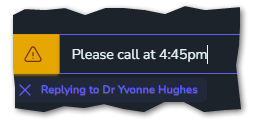
Once you press send, your message will appear with the original just above.
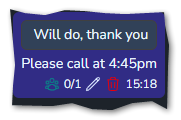
Has the message been read?
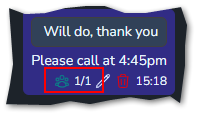
When you send a message, NOVA will tell you if it has been read or not. If there are multiple people in the chat, then the number will vary depending on how many people have read it.
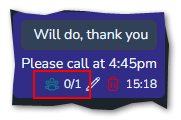
As you can see above (in the red box) the zero represents that the message has not been read by the recipient.
Once it has been read, it will look like this:
Editing a message
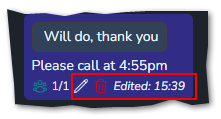
You can edit a message even though it has been sent. If you click on the pencil, it will allow you to edit the message and send it again. It will also let the users know that it has been edited.
Deleting a message
You can delete a message even if it has been sent.
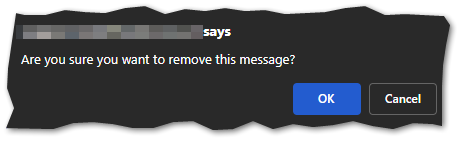
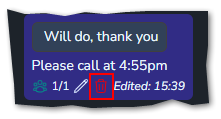 Once you click on the bin button it being up a confirmation to make sure you are sure you want to delete the message. Just click ok if you want to delete, or cancel if it was done by mistake.
If you have deleted it but want to restore it, you can do so. Click on the undo arrow button to restore the message