
Tasks
TABLE OF CONTENTS
- Home Screen Tasks & Messages Widget
- Tasks Main Screen
- Creating a new task
- Closing a Task
- Overdue Task
- Closed Tasks
This guide will take you through the use of tasks section from the homescreen of NOVA.
PLEASE NOTE: Any staff member can close a task as long as they have the permission to do so.
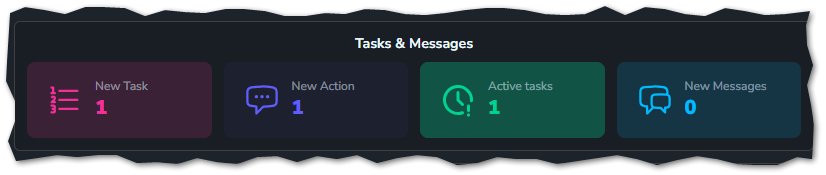
Home Screen Tasks & Messages Widget
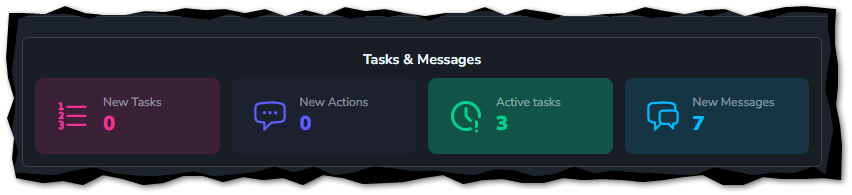
You can either access the tasks screen from the button at the top of the home screen (as shown above) or by clicking the tasks button along the menu bar on the left of the screen.
Tasks Main Screen
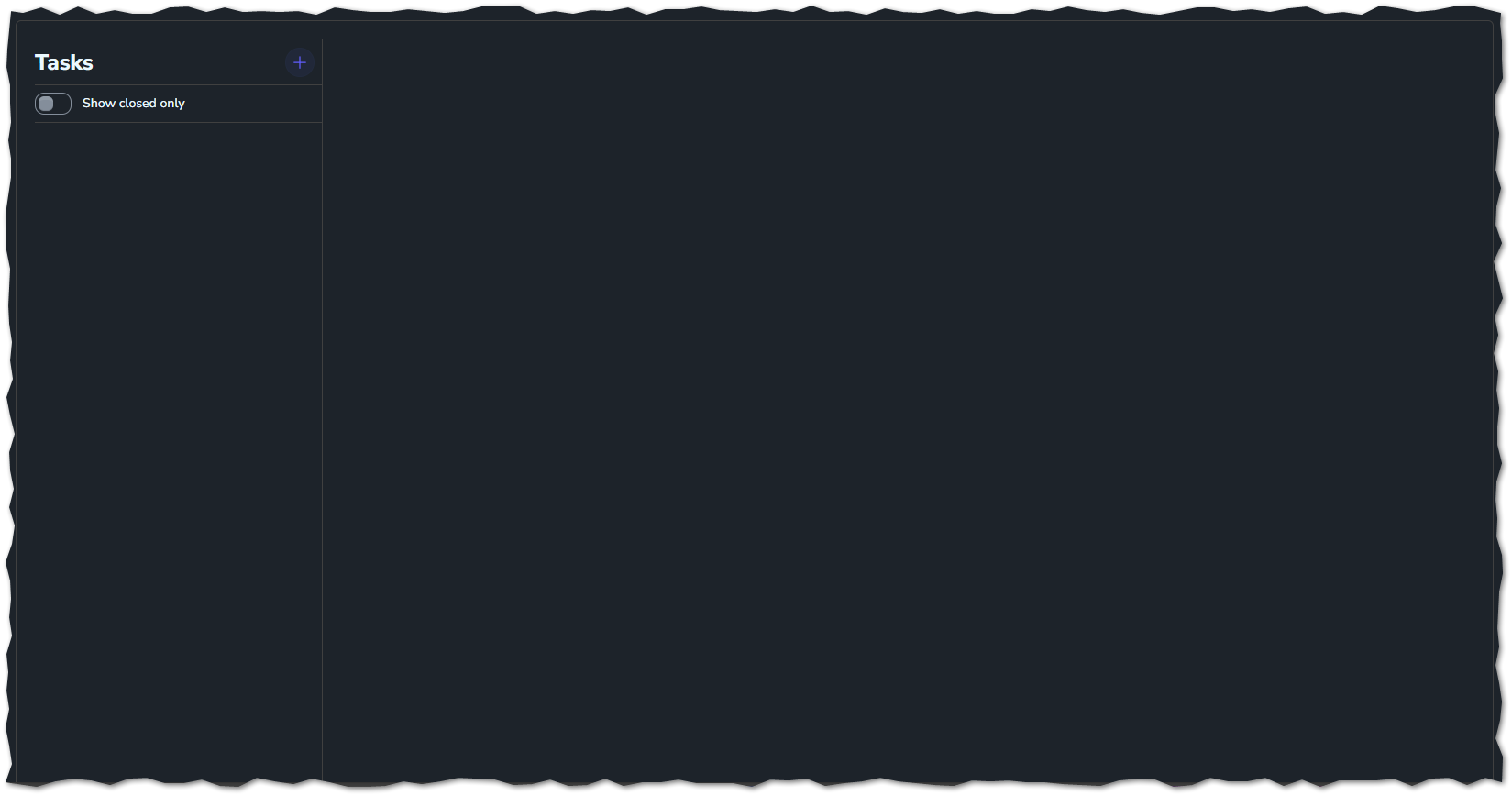
If you haven't used tasks before, the screen will be empty.
Creating a new task
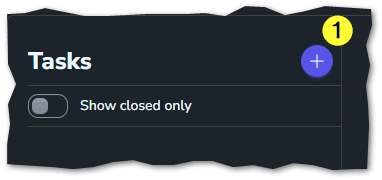
To create a new task for yourself, simply click on the plus icon next to the tasks header.
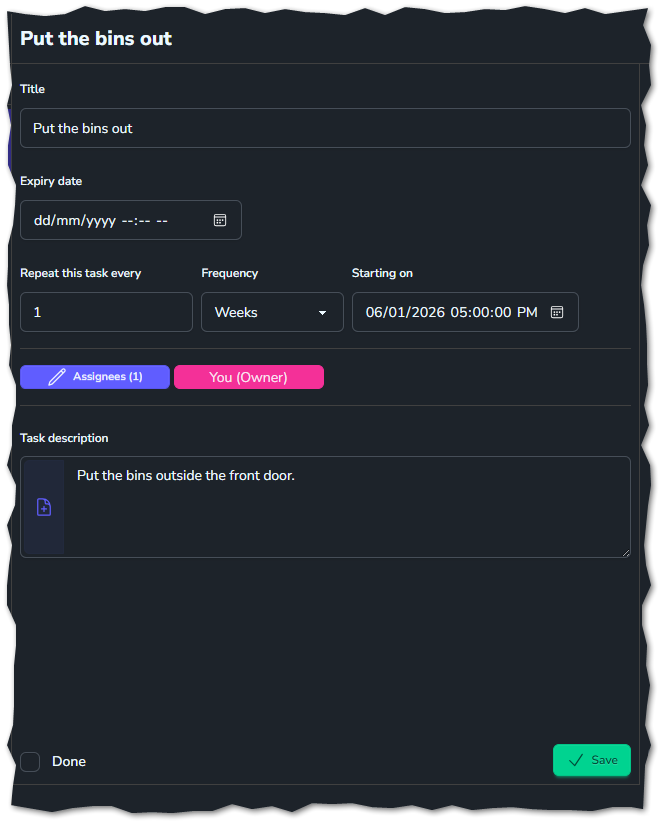
 Once this has been pressed, NOVA will give you options to fill in. The options are as follows:
- Title - A title for the task.
- Expiry date - This is a deadline for the staff member the task has been assigned.
- Repeat this task every - This is useful if the staff member needs to be reminded to do something regularly e.g. every week put the bins out.
- Assignees - This will list you as the creator and any others to whom the task has been assigned.
- Task description - This gives the assignee more information as to what needs to be done as part of the task.
- Done (tick box) - If ticked task has been marked as done.
- Save - This will save the details of all of the above or any subsequent changes.
If you have assigned the task to another member(s) of staff, this will show the new task on their home screen. It will also show them that they have an active task (on the home screen).
As part of the task, you can add messages/actions (which will notify all within that group)
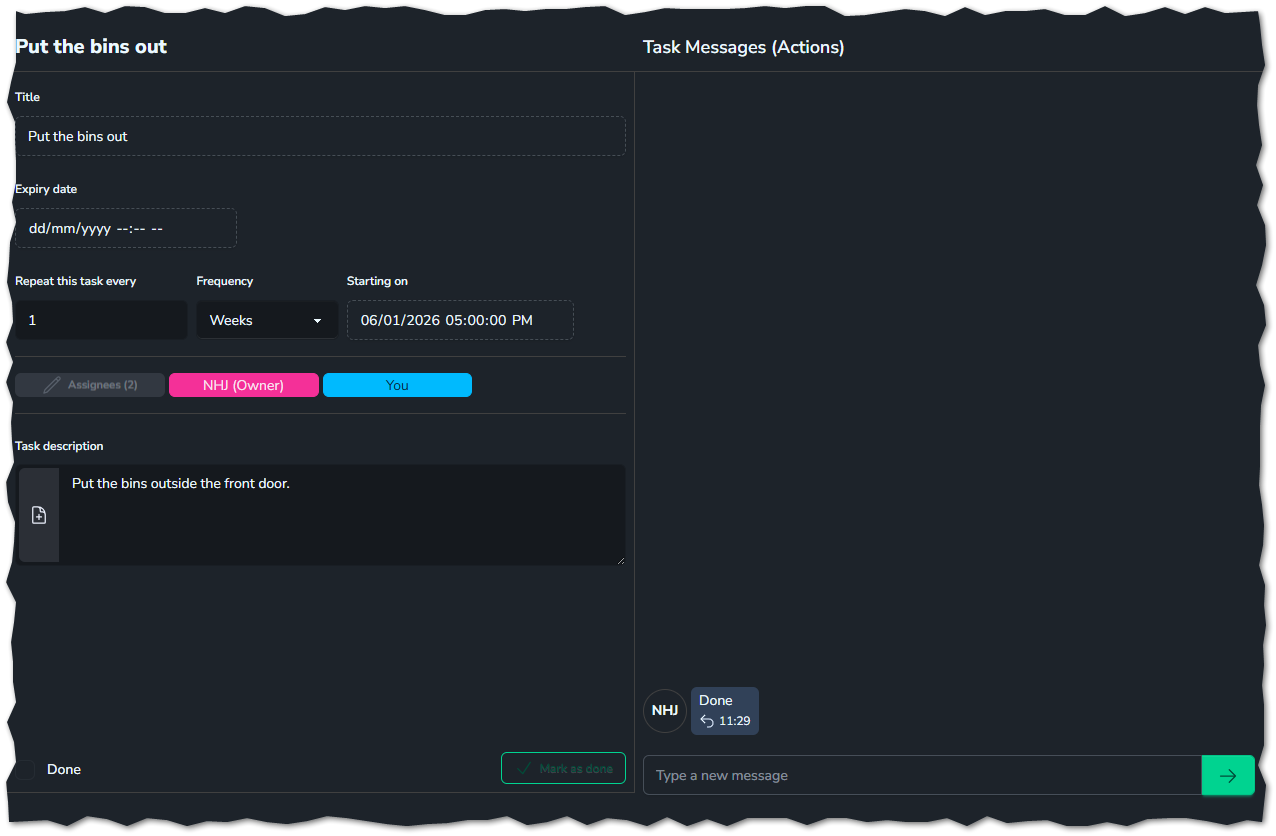
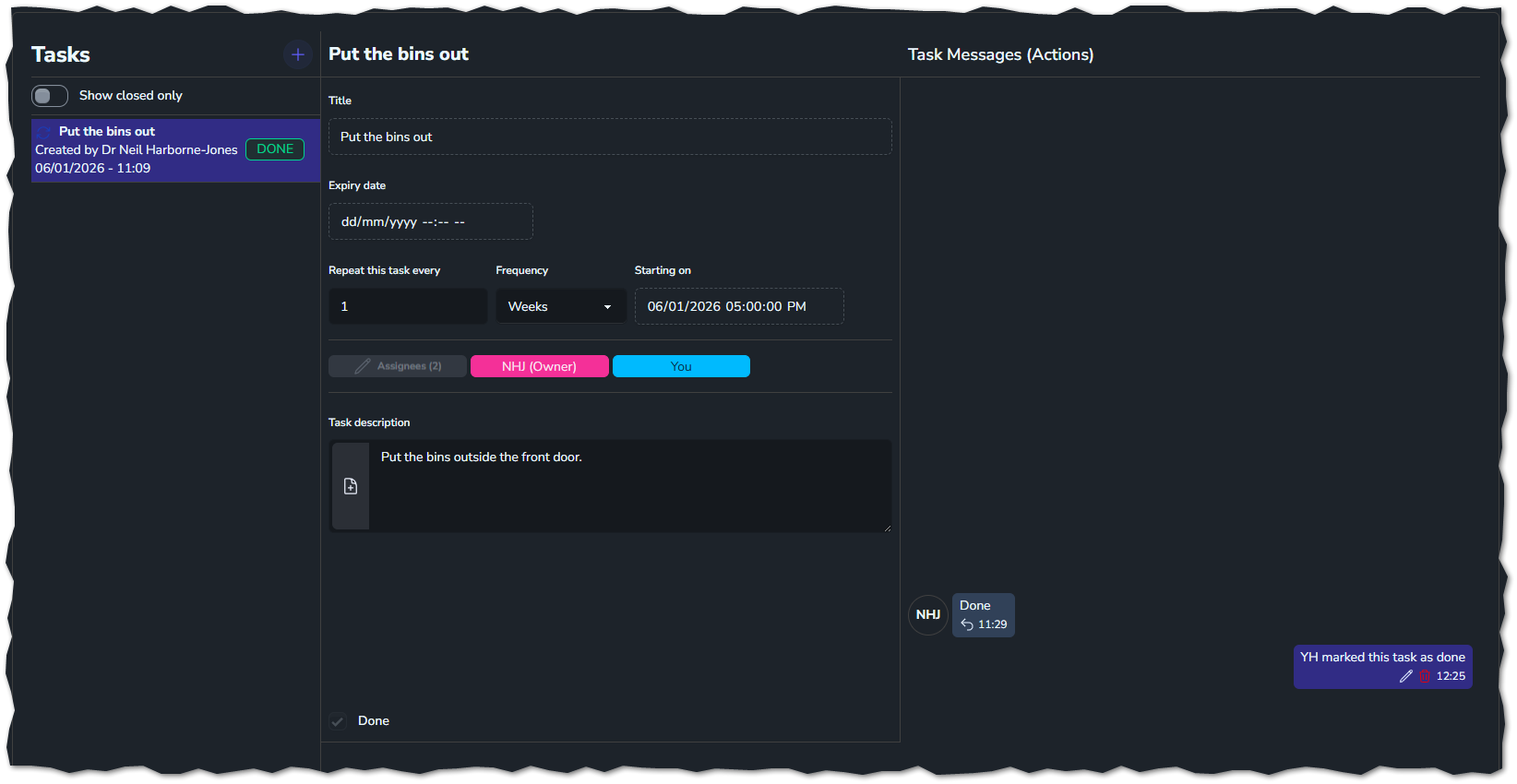
Once the task has been completed, you mark the task as done.
Closing a Task
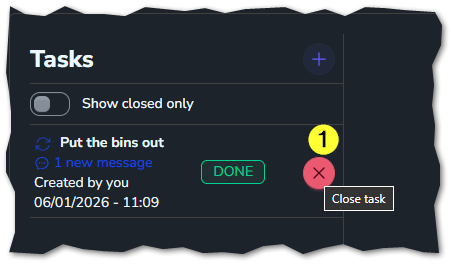
The owner of the task can close it completely
Overdue Task
If a task has been created with an expiry date (deadline), however, the expiry date has passed you will see how far expired the task has become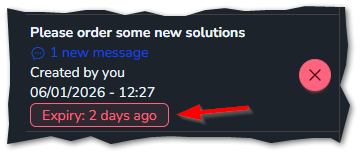
Closed Tasks
If a task has been closed, it will be hidden from the main screen, you can toggle a switch which will display the closed tasks only
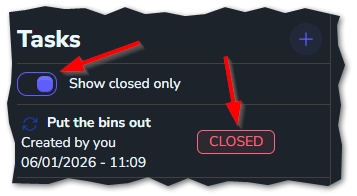 As you can see in the image above, it will display that it has been closed.